If your image upload failed and you’re seeing messages like “Unsupported file type,” “File exceeds maximum upload size,” or “HTTP error,” don’t worry — this is a very common issue.
Whether you’re uploading to WordPress, a website builder, social media platform, or an online form, image upload problems usually come down to a few technical limitations.
In this complete 2026 troubleshooting guide, you’ll learn:
- Why image uploads fail
- What different error messages actually mean
- Step-by-step solutions that work
- How to prevent future upload issues
Let’s fix it.
Common Image Upload Error Messages
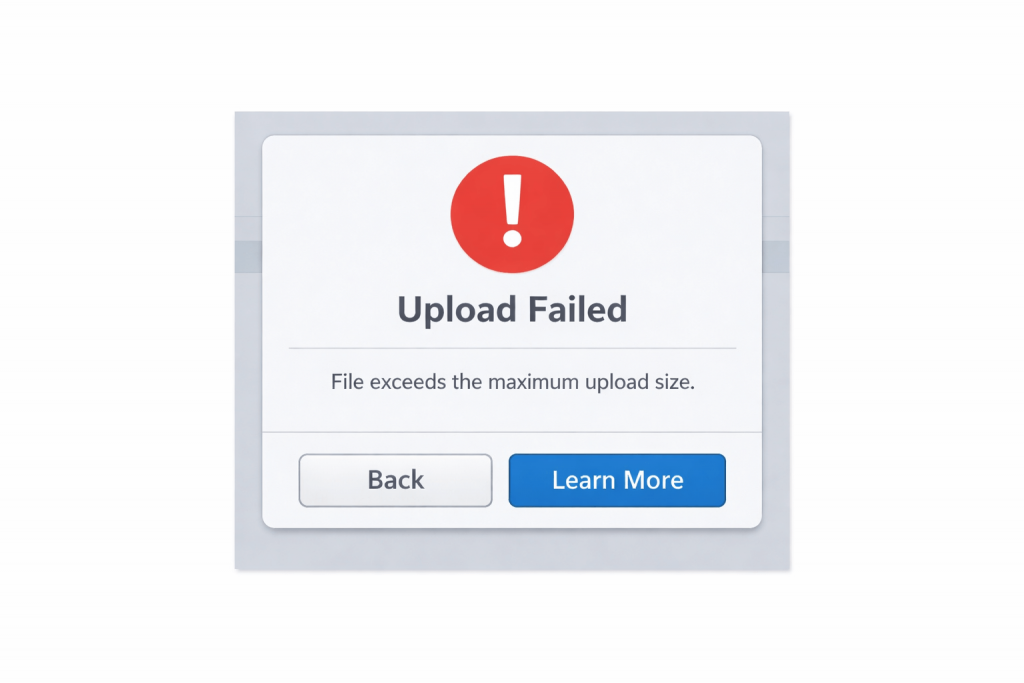
Before solving the issue, identify what error message appears:
- Upload failed
- File exceeds maximum upload size
- Unsupported file format
- HTTP error
- Server cannot process the image
- Image dimensions too large
- The file appears to be corrupted
Each error usually points to a specific cause.
1. The Image File Is Too Large
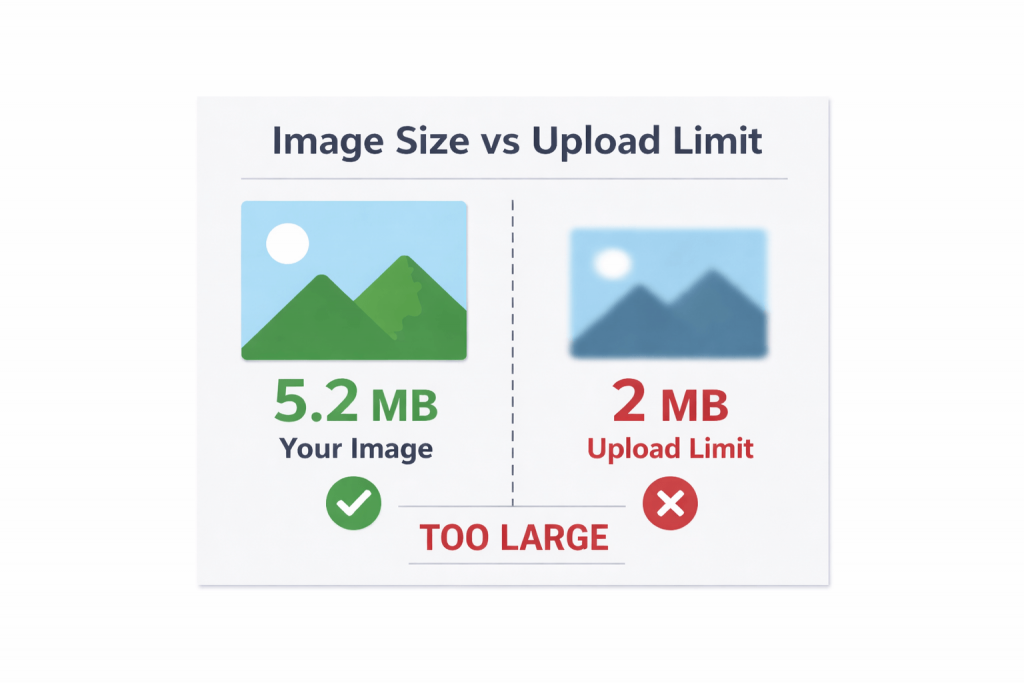
This is the most common reason uploads fail.
Most websites limit upload size:
- WordPress: 2MB–64MB (depends on hosting)
- Social platforms: often 5MB–20MB
- Online forms: usually under 10MB
If your image exceeds the allowed limit, the upload will fail immediately.
How to Fix It
✔ Compress the image before uploading
✔ Resize large photos
✔ Export at 80–90% quality for web use
For a detailed walkthrough, see:
👉 How to Reduce Image Size for Upload Without Losing Quality
Pro Tip: For most websites, keeping images under 2MB and under 2000px wide prevents issues.
2. Unsupported Image Format
Not every website supports every image format.
Commonly Supported Formats
- JPG / JPEG
- PNG
- WebP
- GIF
Often Unsupported Formats
- HEIC (iPhone default)
- TIFF
- BMP
- RAW camera files
If you’re uploading photos from an iPhone, they may be in HEIC format — which many servers still do not accept.
How to Fix
✔ Convert HEIC to JPG
✔ Convert TIFF or BMP to PNG
✔ Use WebP for better compression
Related guides:
👉 HEIC Images Won’t Open on Windows? How to Fix It Easily
👉 Best Image Formats for Web Uploads: JPG vs PNG vs WebP
3. Image Dimensions Are Too Large
Even if the file size is small, extremely large image dimensions (like 8000×6000px) can cause processing errors.
Servers must resize or process images after upload — and very large dimensions can exceed memory limits.
Fix
✔ Resize image width under 3000px
✔ Crop unnecessary areas
✔ Avoid uploading full-resolution camera originals
Recommended sizes:
- Blog images: 1200–2000px wide
- Thumbnails: 600–800px
- Product images: 1000–2000px
4. Server or Hosting Limitations
If you’re using WordPress or another CMS, the issue may not be your image.
Common server-related causes include:
- PHP upload limit too low
- Memory limit exceeded
- Missing image processing libraries (GD or Imagick)
- Plugin conflicts
Typical errors:
- “The server cannot process the image”
- “HTTP error”
How to Fix
✔ Increase PHP upload size limit via hosting panel
✔ Increase memory limit
✔ Disable recently installed plugins
✔ Contact hosting support
If multiple images fail regardless of size or format, server configuration is likely the cause.
5. The Image File Is Corrupted
Sometimes the file itself is damaged.
This can happen if:
- The download was interrupted
- The file was transferred incorrectly
- Storage device errors occurred
Try:
✔ Opening the image locally
✔ Re-exporting from the original source
✔ Downloading it again
If it won’t open anywhere, the file may be corrupted.
6. File Name Issues
File naming errors are surprisingly common.
Avoid:
- Special characters (! @ # % ^ & *)
- Emojis
- Extremely long names
- Non-English characters (on older servers)
Rename your file to something simple like:
website-banner-01.jpg
Then try uploading again.
7. Browser or Cache Problems
Sometimes the issue isn’t your file — it’s your browser.
Try:
✔ Refreshing the page
✔ Clearing browser cache
✔ Switching browsers
✔ Using incognito mode
If it works in another browser, the original browser likely caused the issue.
Quick Troubleshooting Checklist
If your image won’t upload, check:
- Is the file under 2MB?
- Is the format JPG, PNG, or WebP?
- Are dimensions under 3000px?
- Does the file open normally on your computer?
- Did you rename the file?
- Have you tried another browser?
This resolves most upload issues within minutes.
How to Prevent Image Upload Problems
To avoid future issues:
✔ Always optimize images for web use
✔ Use JPG or WebP when possible
✔ Keep file size under 2MB
✔ Avoid uploading full camera originals
✔ Check your hosting upload limits
Optimizing before uploading saves time and prevents errors.
Frequently Asked Questions
Why does WordPress show “HTTP error” when uploading images?
Usually due to server memory limits, oversized images, or plugin conflicts.
What image size is best for website uploads?
For blogs, 1200–2000px wide and under 2MB is generally ideal.
Why won’t HEIC images upload?
Many servers don’t support HEIC. Convert it to JPG or PNG first.
Why does it say “unsupported file type” even though it’s JPG?
Sometimes the file extension is mislabeled. Try re-exporting or converting the image again.
Final Thoughts
Image upload failures are frustrating — but in most cases, they’re easy to fix.
The issue usually involves:
- File size
- Unsupported format
- Server limitations
- Or simple browser problems
By understanding how websites handle image uploads and optimizing your files beforehand, you can prevent most errors entirely.
If you’re also experiencing document upload issues, you may find these helpful: