Have you ever experienced this situation?
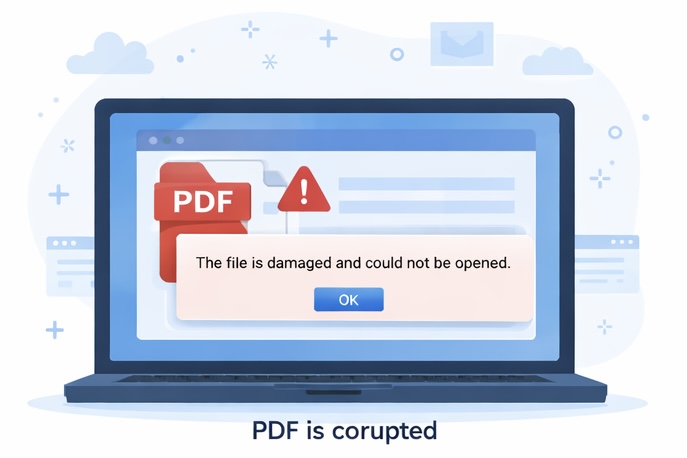
You download a PDF file, double-click it, and suddenly see an error like “The file is damaged,” “Cannot open PDF,” or nothing happens at all.
Don’t worry — this doesn’t necessarily mean your PDF is permanently lost.
In this guide, you’ll learn 5 simple and effective ways to repair corrupted PDF files, suitable for both Windows and Mac users. Even beginners can follow these steps easily.
Why Do PDF Files Get Corrupted?
Before fixing the problem, it helps to understand what usually causes it. Common reasons include:
- Interrupted downloads due to unstable internet
- Incomplete file transfers via email or messaging apps
- Damaged storage devices (USB drives or hard disks)
- Errors during PDF editing or conversion
- Incompatible or outdated PDF software
Method 1: Open the PDF Directly in a Web Browser (Fastest)
Sometimes the PDF isn’t truly corrupted — the PDF reader just can’t handle it properly.
Steps:
- Open Chrome, Edge, or Safari
- Drag the PDF file directly into the browser window
- If it opens, save it again as a new PDF file
👉 This is one of the highest-success methods and is often overlooked.
Method 2: Repair the PDF Using Adobe Acrobat
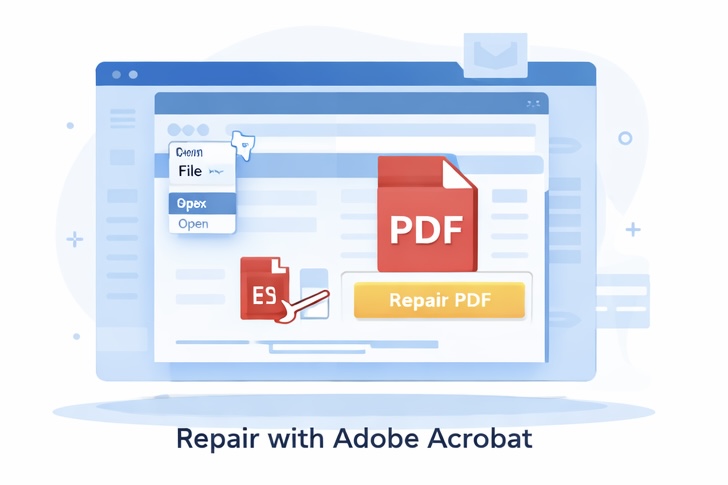
If you have Adobe Acrobat (not just Acrobat Reader):
Steps:
- Open Adobe Acrobat
- Click File → Open
- Select the corrupted PDF
- Follow the on-screen repair prompts
⚠️ Cons:
- Requires software installation
- Some repair features are paid
Method 3: Convert the PDF to Word and Back to PDF
This “workaround” method is surprisingly effective for lightly corrupted files.
How it works:
- Convert PDF → Word
- Edit or check the content
- Convert Word → PDF
Pros:
- Allows you to verify content integrity
Cons:
- Formatting may slightly change
Method 4: Use an Online PDF Repair Tool (Recommended)
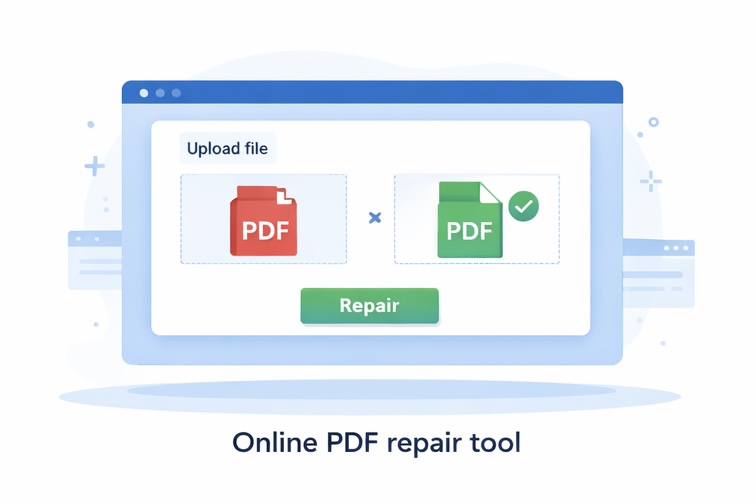
If you don’t want to install any software, online PDF repair tools are a great option.
Advantages:
- No installation required
- Very easy to use
- Works on Mac, Windows, and mobile devices
Tips:
- Avoid uploading sensitive documents
- Always choose HTTPS-secured websites
👇 Here are a few well-regarded, free, and secure online repair tools
https://www.ilovepdf.com/zh-cn/repair-pdf
(全球最流行的PDF工具,界面友好,支持从Google Drive和Dropbox直接导入,修复成功率较高)
https://tools.pdf24.org/zh/repair-pdf
(完全免费且无文件大小限制,注重隐私安全,处理速度极快,是很多用户的“保底”选择)
https://www.pdf2go.com/zh/repair-pdf
(功能全面,支持批量修复,同时提供修复后的再编辑功能)
https://www.sejda.com/zh/repair-pdf
(页面简洁,每天提供免费处理额度,特别适合处理结构轻微损坏的文件)
Method 5: Re-download or Request the Original File (Most Reliable)
If none of the above methods work, the file may be severely damaged.
Try:
- Re-downloading the file from the original source
- Asking the sender to resend it
- Exporting the PDF again from the original document
This is the safest — but often underestimated — solution.
How to Prevent PDF Files from Getting Corrupted Again
- Always wait for downloads to finish before opening files
- Use a stable internet connection
- Avoid repeated format conversions
- Use reliable and updated PDF tools
Final Thoughts
A PDF file that won’t open doesn’t mean it’s beyond repair.
By following the five methods above, most corrupted PDF files can be successfully fixed.
👉 If you work with PDFs frequently, bookmark this page.
I’ll continue publishing practical PDF tips, repair guides, and tool recommendations.
发表回复